
Adding the javascript logic.
Before completing this stage of development it is vital that the previous step has been completed.
Please refer to Session 5 – notes for additional guidance.
Note: In terms of this project we are using the ‘waterfall’ development methodology i.e. Each stage must be completed before the next can begin. (we cannot add any logic until the components exist)
We have our interface working and tested – the series of modals open and close according to the design requirements within the pseudocode.
We have several steps to accomplish in order to complete the program.
- Add the questions.
- Add validation (correct/incorrect).
- Increment the score.
1. Adding the questions
Please refer to Session 6 – slide 8.
For this stage we must add:
- The questions
- The answers
- The user input
To store our questions we can use a variable, this allows us to output the questions using the standard ‘innerHTML’ method into our modals.


Create a variable for each of your questions. Update each modal to output these questions.

Before.
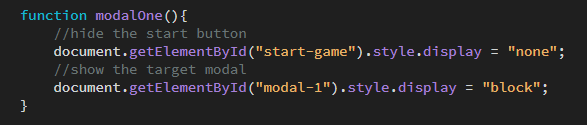
After.

Test this and update to your test log.
Test for each modal displaying the correct question.

So we now have the questions outputting to the modals
Next we need to know what the answers are and also provide a way for the users to enter a response.
Create a variable to store each of the actual answers.
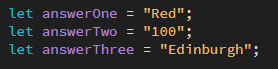
Create a variable to store the user answers.
Note: these are created as ’empty’ values as we do not yet know what the user has entered.

At this step we are ready to begin adding in fields for the user input.
Please refer to Session 6 – slide 12.
This is the same html element as used within the ‘Software Development’ module – you should recognise these.
<input type=”text”/>
We can update the basic field with an ID so that we can gather the input and send it back to our program.
<input type=”text” id=”answer-one”/>
This creates an input field within the html allowing users to enter data.

Remember to check the front end – update your test log to confirm if all outputs display as expected for each modal.

This completes the initial stage which required the following:
- The questions
- The answers
- The user input
2. Adding the validation logic
Please refer to Session 6 – slide 14.
For this stage we must add:
- A way to GET the user data
- A way to COMPARE this with the required data
Getting the data.
We added an ID to each of the input fields (remember ID’s are unique).
We can use this to bring the user data back into the program. To do this we will need to write a new function, it will have several key tasks but for the first task it needs to gather information.
Note: This is a named function (functions can be anonymous) and it contains the ‘value’ method.
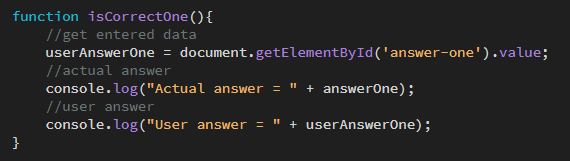
It’s purpose is to update the empty variable we set earlier, it does this by looking through the html document for a specific ID and checks it’s value, it then assigns this value to the variable.
Now, this is all well and good but the function will not run yet, it has not been told too or, more correctly it has not been “called”.
We must update the html.
In terms of our program, (an event driven model) we can listen for DOM events – in this case a ‘change‘ event. We can run the function when the program detects a change in the input field.
Please refer to Session 6 – slide 21.

When the event listener finds an ‘onChange‘ event bound to a specific input ID, it will ‘call’ the corresponding function which checks for correctness in the data for this question.
isCorrectOne()
Note: This is very similar to listening for a user click (onClick) which we are using on our buttons.

Now that the functions are running we can do another set of tests.
Note: Make use of the console to output the data – both the actual answer & the user answer. This can also be added to your test log validating that you are correctly getting data for comparison.

It is very clear from the console output that we know whether or not the user has gotten the question right or wrong. Our program however, does not know this yet!
2b. Comparing the data
Please refer to Session 6 – slide 16.
For this stage we must add:
- A way to compare the two sets of data
Simply, we can use the comparison operator ‘equal to‘ to check this as it is essentially a boolean (either true or false) an ‘if/else‘ code block will do the job.
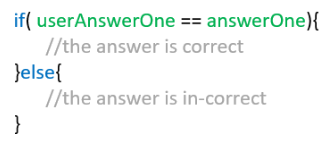
We must update each of our validation functions.
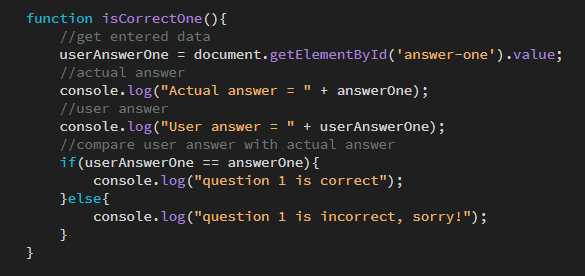
Note: Again, use the console output to check that your functions are working correctly, update your test log again checking that you are recieving the expected results.

This completes the second stage which required the following:
GET the user data
COMPARE this with the required data
3. Incrementing the score.
Please refer to Session 6 – slide 24..
For this stage we must add:
- Somewhere to store the user score
- A way of updating this score as the user progresses.
The first stage is straightforward – set an empty variable.
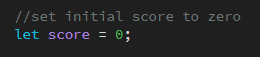
The desired behaviour based on the pseudocode is that the score must increase upon a correct answer.
We do this by ‘incrementing‘ the value.
Please refer to Session 6 – slide 25.
(Again, this is something we covered within the ‘Software Development’ module.)

Place the code within your function – it should be within the ‘if‘ section as this is where the program assigns a ‘true‘ flag to the task.
This will update the score variable by 1 point, each time it runs. (this is within each of your functions checking the data so will run once for each question IF it is correct.)
As usual, make use of the console!
The screenshot shows the entire sequence.
Guess what? You should update your test log …again 🙂
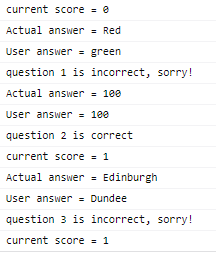
This completes the third stage which required the following:
Store the user score
Update the score as the user progresses.
4. Completing the program.
For this stage we must add:
- User feedback.
- A way to return to the start and play again.
We will need some HTML and some additional functionality to handle re-starting the quiz.
First create the new modal, this will now be the final modal in the sequence.

Note: The button which was within modal 3 has been moved into the final modal. The button in modal 3 has been updated to run a function to display the results back to the user.
Modal three – before

Modal three – after
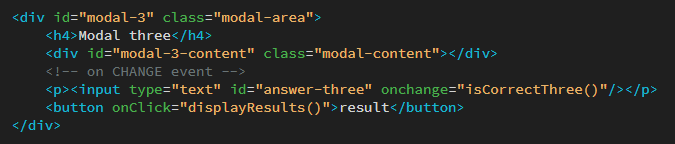
This allows us to output back to the user by ‘calling‘ a new function. This function’s job is to populate the final modal with the results.
The function will look for an ID of “user-score” and populate this with the current value of the ‘score‘ variable, which has been updating itself as the user moves through the sequence of questions.

This completes the fourth stage which required the following:
User feedback.
Ability to play again.
5. Tidying up.
The program is almost complete at this stage.
Of course you will have updated the test log with the recent additions? If not do so now.
We have an existing function to handle re-starting the game, we can update this with a little more code to clean out the variables and get the program ready to run again.
‘restart‘ function – before

‘restart‘ function – after

Well Done!
There is quite a lot to get through for this phase of development, many parts of the program can break during this phase. Remember to make use of the console to check for any JavaScript errors such as a mistake in the syntax somewhere (missing a quote mark and such like). Do not give up, you have all that you need to complete the program.
If in doubt – ASK FOR HELP!
Going forward.
Now as we discussed during the live session, this program has flaws. While it does work and performs it’s job there are things we could alter or adjust to improve the program and make it work better. This is quite normal within the lifecycle of a program.
It is up to you to think of ways in which you may improve things and make suggestions for the next phase of development.
For reference, the completed program is available here to examine.