
Assistance and support for building out the homepage.
During the session our aim is to complete the homepage for the Farm website brief.

The tasks are:
Tidy up the header.
- Add containers for our basic layout grid, based on your design.
- Create new containers for both the logo and social icons and place these within the relevant container.
- Add some basic style to the header.
Adjust site navigation.
- Add links to the navigation, we will populate these pages next time.
- Duplicate this page and use it to create the others listed in your site map.
Add content to the homepage.
- Based on your wireframe add the structures from your ‘layout.html‘ file
You will need your blank template.html page and also the layout.html page.
To begin with we have a blank template page, which looks something like this.

Based on the wireframe there are several elements which must be added before duplicating this page, these are the site logo and the social media links. These elements should be within the header, beside the navigation.
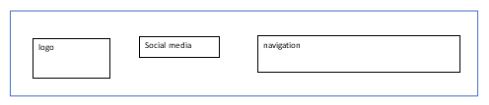
We can use our grid from the layout.html file to create the basic structure we need. For this a 2 column structure would be perfect.
Copy this section and paste it into your header, just above the nav. We can add additional elements into this structure to build up the page header.
The site logo and social links can go in the left and the navigation in the right.
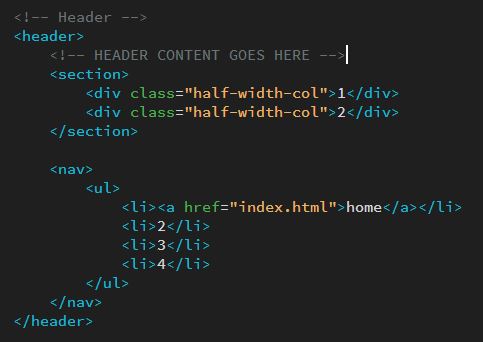
Create 2 NEW div elements within the left area and move the nav into the right.
Remember to update your css file with these two new ID’s, you will need to add some additional properties to control their positioning.
Add the following into your css for these 2 elements, you can adjust this later.


Preview this in the browser to check everything is where you are expecting it to be.

This is not very interesting to look at… we have not added any properties to the header – such as a background colour.
For this example the colours will be based on an image submitted into the adobe colour web application.

Do that now, add the following to your css file, change the colours to suit your own design.

This is a good time to refine the navigation styles too.

Note: It is typical practice to add some form of ‘hover’ state for elements like navigation links, you may need to change the colour of the link text itself so pick the colour for the background with this in mind – the text MUST be legible.

Did you notice the gap at the edge of the browser window? This is a default style generated by the browser itself, we can remove this preset.

We may as well add a background colour property to the body while we are here.
Add an image into the logo element, in this case a placeholder has been used.
You may need to adjust the file path to your own image.


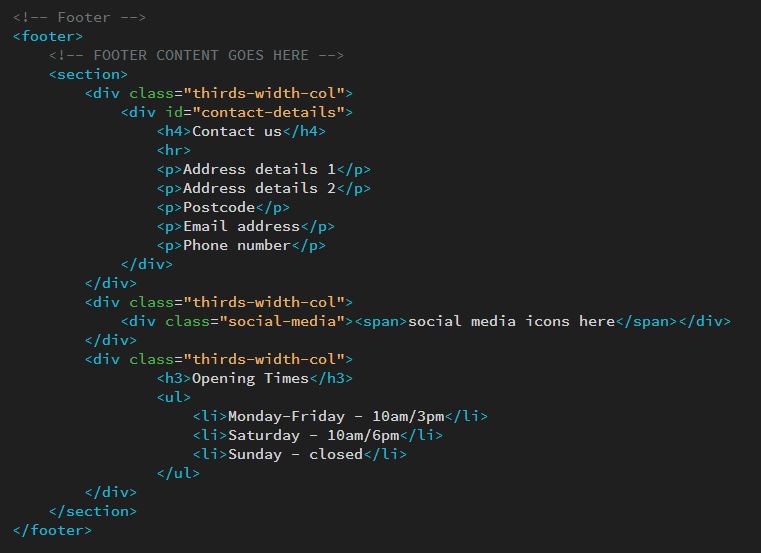
Repeat this process to add structure and style to the site footer.
Notice for the footer, that it requires the 3 column structure, again this comes from the wireframe.


Last task for this part of the build is to save some time later by adding links to the site pages, these will be listed in your site map.

Site header with page links added.

This file will act as our ‘template’ for the rest of the site. At this stage we can save this file as ‘index.html‘ as it will become the homepage for the site.
We can also re-save this file for each of the pages, in this case one for:
- about
- cafe
- zoo
- attractions
Remeber to change the title for each of them!

Your folder structure should be something like this. (Your site map may include different pages from these shown.)

You should now have a working site, with all of it’s pages. We can proceed to the next step and begin adding in some content to these pages.
Looking again at the wireframe, the first content element to create is a 2 column structure.

This has an image on the left and some text on the right. The code for this is:

The next content element is a 3 column structure, it has an image, a heading with some text and a button in each of the three sections. Copy the code snippet from your layout.html file and paste it directly below the 2 col structure.

We have not encountered the button element yet but it is similar to a navigation link. When used in cases such as this, it is typically used as a “call-to-action”. They act as a direct link to another important part of the website where you would like the site users to visit.

This is a good time to check your page again, preview it in the browser.

Notice that by default the buttons are a bit rubbish, this is the browser applying some basic styles. We can of course override this with something a bit more friendly.


Note: Similar to a navigation link, when changing the background colour of a button it is important that the text is still legible. You can add this by targeting the anchor inside the button.
button a {color: #fff;}
With the updated buttons the page is beginning to look a bit better.

Looking back at the wireframe once more, the last content element is another 2 column structure.

Again, just as before copy the basic one from your ‘layout.html‘ file and paste it directly below the previous section. Remember this is STILL INSIDE the #main-content div!
Be careful when nesting elements inside others, be mindful of the closing tag.
The homepage is now complete, it may need some tweaking later to refine some details but for now, this is a good stage to reach.
It is relatively straightforward to populate the rest of the site pages, using the techniquies described here – you should now begin this process and add content into your pages using the wireframe as a guide for the structure.